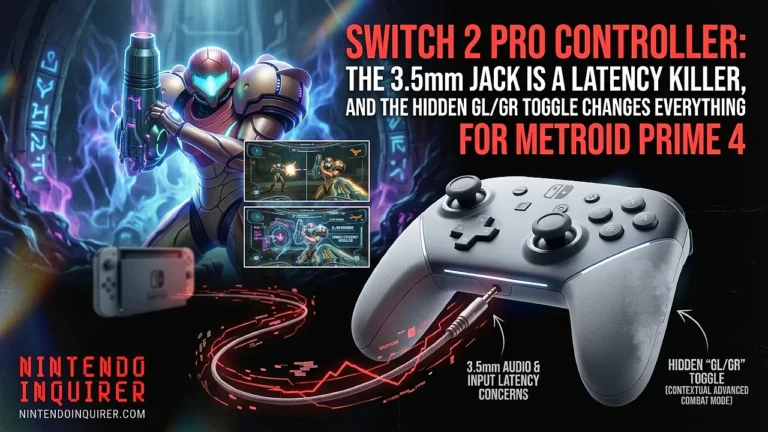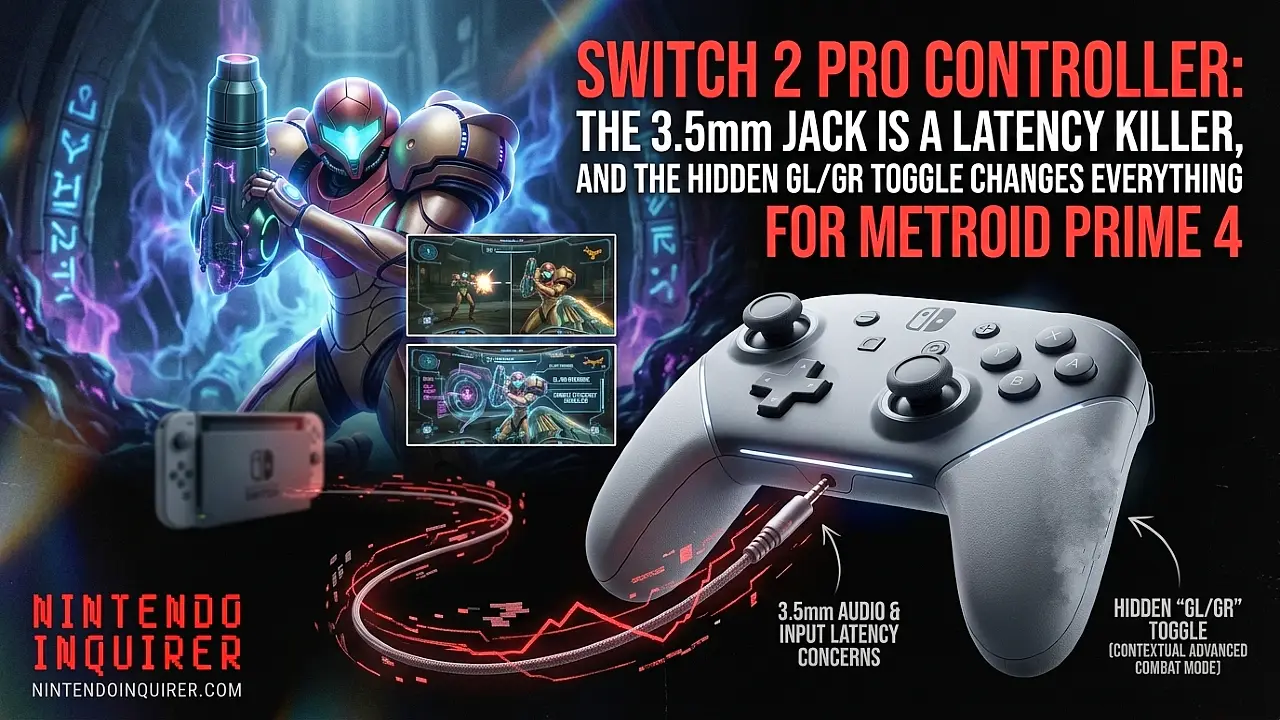
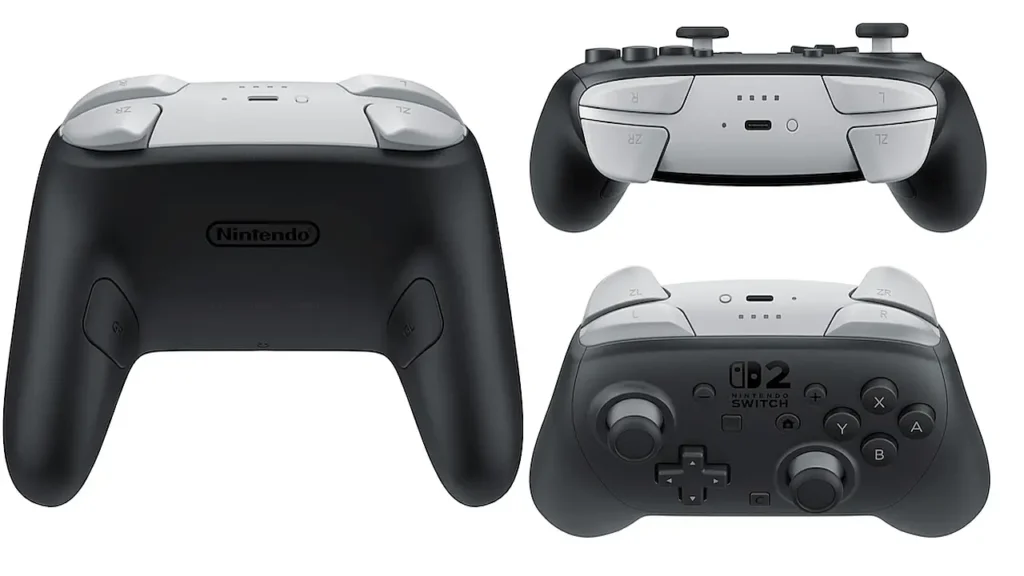
At a glance, the Nintendo Switch 2 Pro Controller (Model BEE-009) looks like a sleek, dark gray revision of the 2017 original. The handles are slightly thicker, the grips feature a new micro-texture, and there are two mysterious buttons on the back labeled GL and GR.
Most of the launch coverage has focused on the Joy-Con 2 mouse functionality or the C-button for GameChat. Fair enough. But buried in the official spec sheet are two features that fundamentally alter how competitive and single-player games will feel on Switch 2. This is the deep dive on the 3.5mm audio jack and the GL/GR toggle mode.
1. The Headphone Jack: Zero Latency Audio Over 2.4GHz
Let’s address the elephant in the room. The original Switch Pro Controller had no headphone jack. If you wanted game audio, you either plugged into the console itself (tethered to the dock) or you used Bluetooth headphones paired directly to the Switch.
Bluetooth audio on Switch 1 was… functional. But for anyone who plays Splatoon, Fortnite, or Overwatch, the ~150-200ms audio delay made positional audio useless. By the time you heard the thwip of an enemy charger, you were already splatted.
The Fix: Direct 2.4GHz Audio Transmission
The Switch 2 Pro Controller solves this by embedding the audio signal directly into the controller’s low-latency wireless protocol. Here is the technical breakdown:
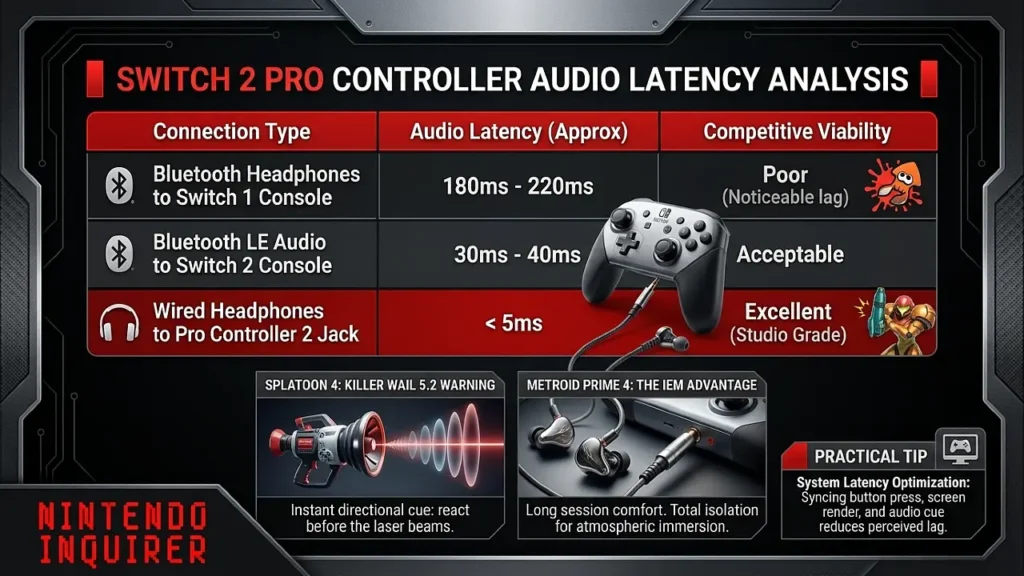
| Connection Type | Audio Latency (Approx) | Competitive Viability |
|---|---|---|
| Bluetooth Headphones to Switch 1 Console | 180ms – 220ms | Poor (Noticeable lag) |
| Bluetooth LE Audio to Switch 2 Console | 30ms – 40ms | Acceptable |
| Wired Headphones to Pro Controller 2 Jack | < 5ms | Excellent (Studio Grade) |
Why this matters in Splatoon 4 and Metroid Prime 4:
In Splatoon 4, the new Killer Wail 5.2 special weapon emits a directional “charging whine” before the laser beam appears. With Bluetooth audio, that sound cue reaches your ears roughly 1/5th of a second late. With wired headphones plugged into the Pro Controller 2, the audio is synchronized with the frame rendering.
Practical Tip:
If you’re using a gaming monitor with low input lag and wired audio via the Pro Controller 2, your total system latency (Button Press -> Visual Feedback -> Audio Confirmation) is drastically reduced. This isn’t placebo; it’s measurable signal path optimization.
The IEM Advantage:
The Pro Controller 2’s headphone jack has enough power to drive most In-Ear Monitors (IEMs) like the Truthear Zero or Moondrop Chu II. This means you can have tournament-grade audio isolation without wearing a heavy gaming headset for a 4-hour Metroid Prime 4 session.
2. GL and GR Buttons: It’s Not About Mapping, It’s About Toggling
Rear buttons are nothing new. Scuf controllers, Xbox Elite pads, and 8BitDo models have offered back paddles for years. But those are limited to Button Remapping. They mimic a face button; you hold them down to keep the action active.
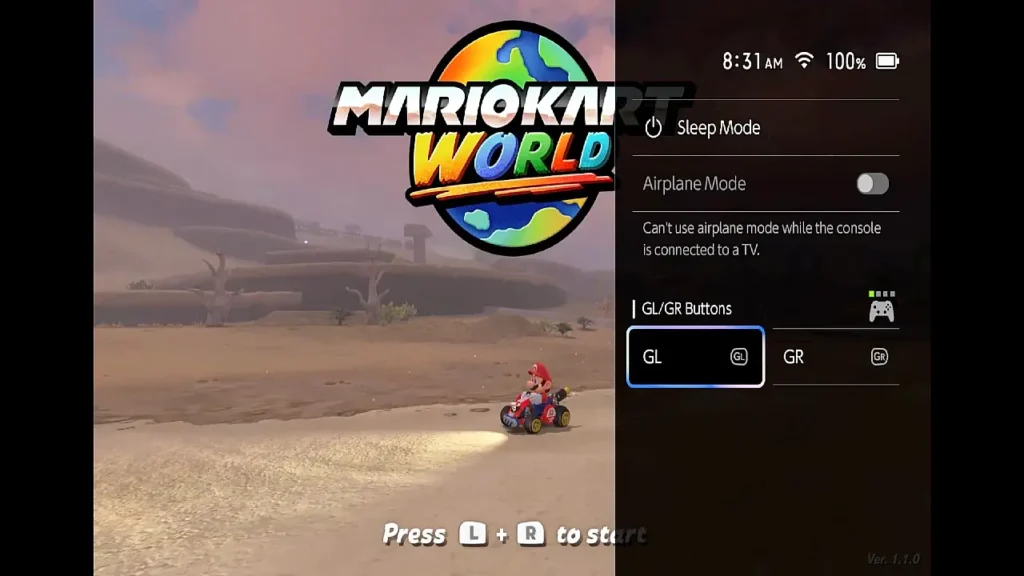
The Switch 2 Pro Controller introduces a System-Level Toggle Mode specifically for the GL and GR inputs. This is not a game setting; it lives in the Switch 2 OS menu.
The Setting Location:System Settings > Controllers and Sensors > Change Button Mapping > GL/GR Button Behavior
Options:
- Hold: Standard behavior. The input is active only while the button is pressed.
- Toggle: Press once to lock the input ON. Press again to release.
The Claw Grip Killer (Metroid Prime 4: Beyond)
This feature is a game-changer for Metroid Prime 4: Beyond. The game uses a control scheme where ZL is the “Lock-On / Aim Down Sights” modifier. To scan enemies or line up a precise missile shot, you must hold ZL constantly. Over a 20-hour campaign, this leads to the dreaded “Claw Grip”—cramping your left index finger into a permanent hook shape.
The Fix:
- Navigate to the Button Mapping settings on the Switch 2 Home Menu.
- Assign ZL to the GL (Grip Left) button.
- Set GL Behavior to Toggle.
- Result: Enter a combat room. Squeeze the GL paddle once with your middle finger. Samus raises her arm cannon and stays in aim mode. Your left index finger is now completely free to rest comfortably or tap L for the Grapple Beam.
This same logic applies to:
- Zelda: Holding ZL to lock onto enemies (freeing up your thumb for jumping).
- Xenoblade: Holding ZR for Talent Art selection.
3. What Does NOT Work (Important Clarification)
To avoid returns and frustration, there is one critical limitation to understand regarding the new audio setup.
⚠️ USB-C Audio is NOT Supported Wirelessly
The USB-C port on the top of the Pro Controller 2 is strictly for charging and wired communication mode (when connected to the dock). You cannot plug a USB-C headset or DAC into the controller and get audio while playing wirelessly.The Correct Setup:
- Wireless Play: Use the 3.5mm jack for audio.
- Wired Play (Tournament Mode): Connect the controller via USB-C to the dock. Then USB-C audio passthrough works.
Microphone Note:
The built-in microphone on the Pro Controller 2 (located near the Nintendo logo) is active only when using the 3.5mm jack with a TRRS (4-pole) headset cable. If you plug in standard stereo headphones (TRS 3-pole), the mic input defaults to the controller’s internal array.
4. The Bottom Line: Is It Worth $79.99?
The original Pro Controller was the gold standard for battery life and comfort, but it was a decade old in terms of feature set. The Switch 2 Pro Controller is not a radical redesign; it’s a surgical refinement aimed squarely at input response and audio clarity.
Buy it if:
- You play competitive shooters and rely on sound cues.
- You plan on playing Metroid Prime 4: Beyond for 100+ hours and value hand comfort.
- You hate the “echo” effect of hearing game audio 200ms after the action happens.
Skip it if:
- You only play turn-based RPGs or visual novels in handheld mode.
- You already own a third-party controller with back paddles and don’t care about audio latency.
The headphone jack alone justifies the upgrade for anyone who has suffered through Bluetooth audio lag on Switch 1. The toggle functionality for GL/GR is just the cherry on top.
What’s your go-to audio setup for Switch gaming? Let us know in the comments.
About the Author